
Appearance
Stage View
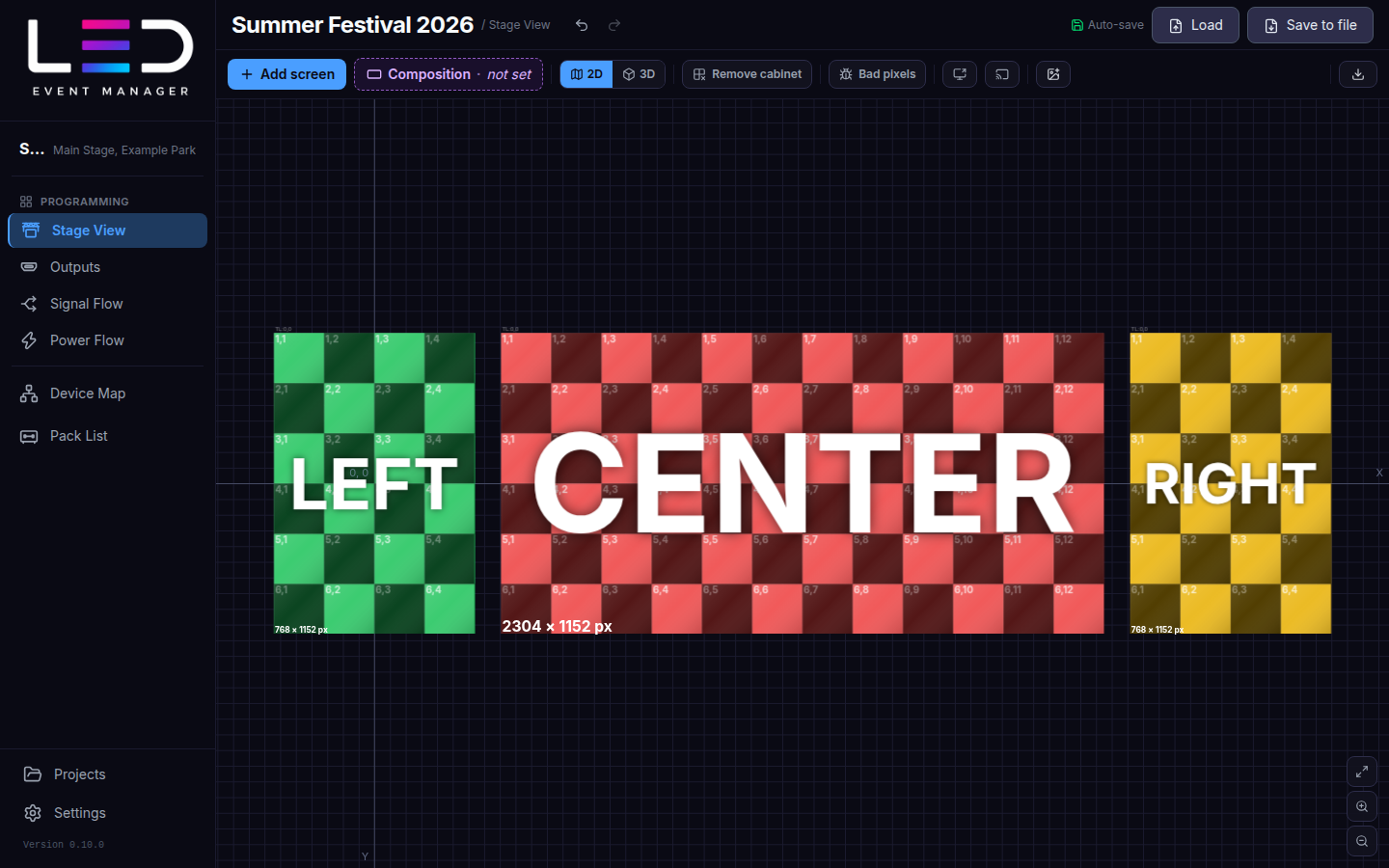
Stage View is where the show starts: the LED screens as they stand on stage, in 2D and 3D.
Add a screen
Click Add screen.
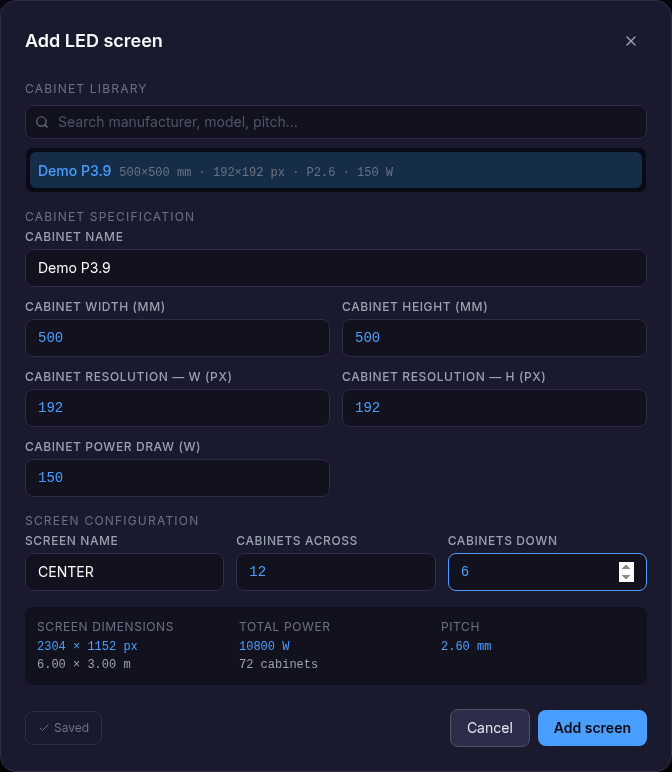
- Pick a cabinet from the Cabinet library (search by manufacturer, model or pitch), or enter a Cabinet specification: name, width and height in mm, resolution in px and power draw in W. + Save to library keeps it for the next projects.
- In Screen configuration set the Screen name and the number of Cabinets across and Cabinets down.
- Check Screen dimensions, Total power and Pitch, then click Add screen.
Trial
The trial allows up to 3 screens per project.
Arrange the stage in 2D
- Drag screens to move them. Snap guides help to line them up.
- The X / Y axes and the 0, 0 origin mark the centre of the stage (can be switched off in Settings).
- Composition sets the size in px of the canvas that holds every stage screen, used by the NDI and display outputs — Fit to screens, Apply or Remove.
- Fit view (bottom right) fits every screen in the window.
Screen properties
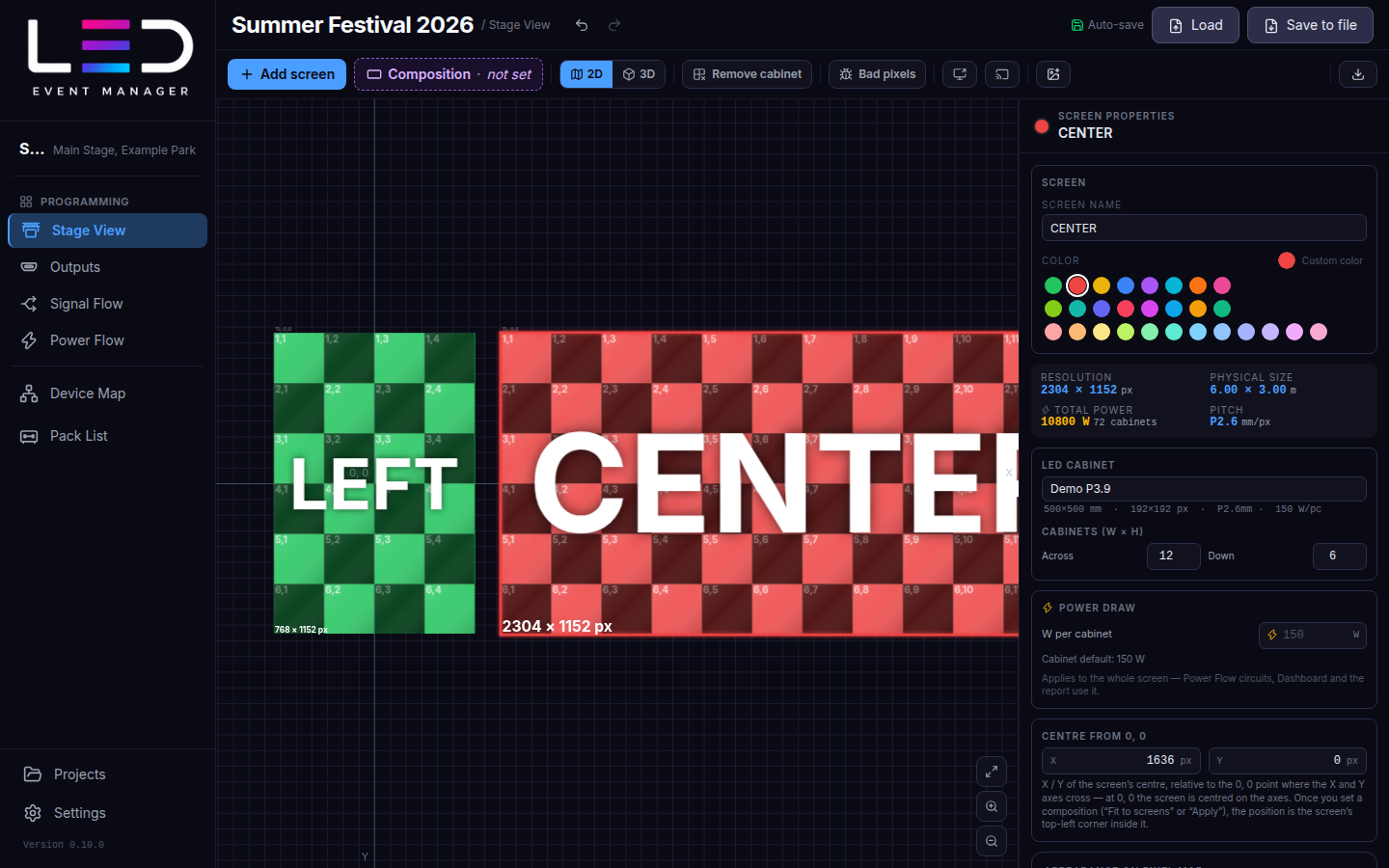
Click a screen to open its properties: name, colour, resolution, physical size, total power and pitch, position, rotation and curve, and the LED cabinet.
3D view
Switch to 3D in the module toolbar. Tick screens in Screens in view (or Add all) to place them in the 3D model.
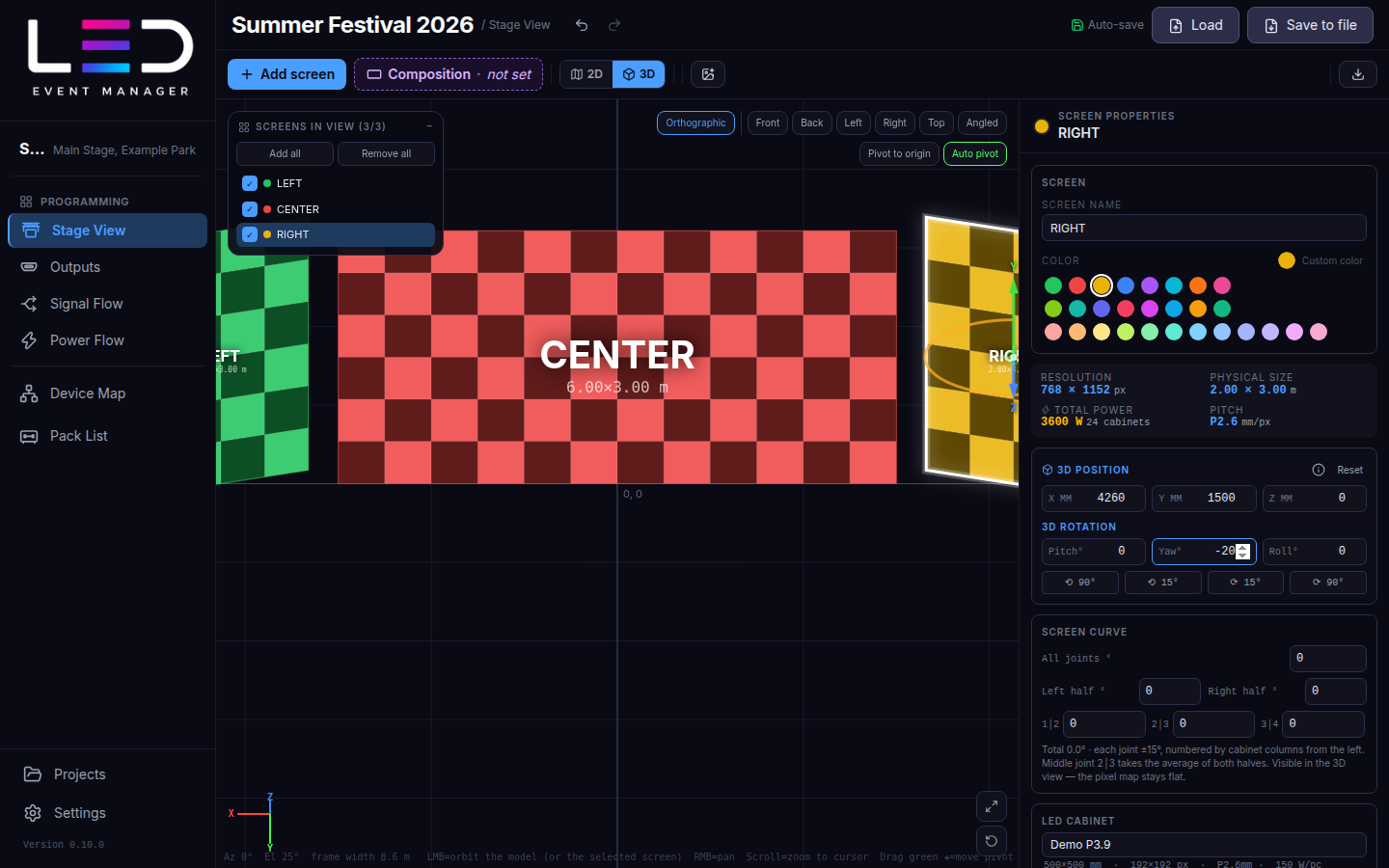
- 3D position (X / Y / Z in mm) and 3D rotation (pitch, yaw, roll, with ±15° / ±90° buttons) of the selected screen.
- Screen curve — bend every joint between cabinets separately, from −15° to +15°.
- Camera: Orthographic / Perspective and the Front, Back, Left, Right, Top and Angled views. Left mouse orbits, right mouse pans, the wheel zooms.
- Pivot to origin / Auto pivot choose the point the view orbits around.
- With the keyboard: G moves and R rotates the selected screen, then X, Y or Z locks an axis.
Other tools
| Tool | What it does |
|---|---|
| Remove cabinet | Click cabinets to take them out of a screen (irregular shapes); Restore all brings them back. Removed cabinets are empty: the screen name moves onto the remaining cabinets, clicks over the gap in Outputs go through, and cutting through the gap leaves the parts as separate screens. |
| Bad pixels | Paints cabinet quadrants in a colour to mark faulty cabinets — also visible in the NDI stream. |
| Display output | Shows an output full-screen on a second display (Fit to display or 1:1 pixel for pixel). Close it with Remove or Esc on that display. |
| NDI output | Broadcasts the composition, a whole output or one screen as an NDI source on the network. The NDI runtime ships with the Windows installer; on macOS install the NDI Runtime (NDI Tools) first. |
| Logo | Adds a logo (for example the event's) drawn on the screens in pixel maps and drawings. |
| Export | Opens the Export dialog. |
| CAD underlay (experimental) | Loads DXF/DWG venue drawings and places screens by picking spots on the model. Switch it on in Settings. |