

Appearance
Settings
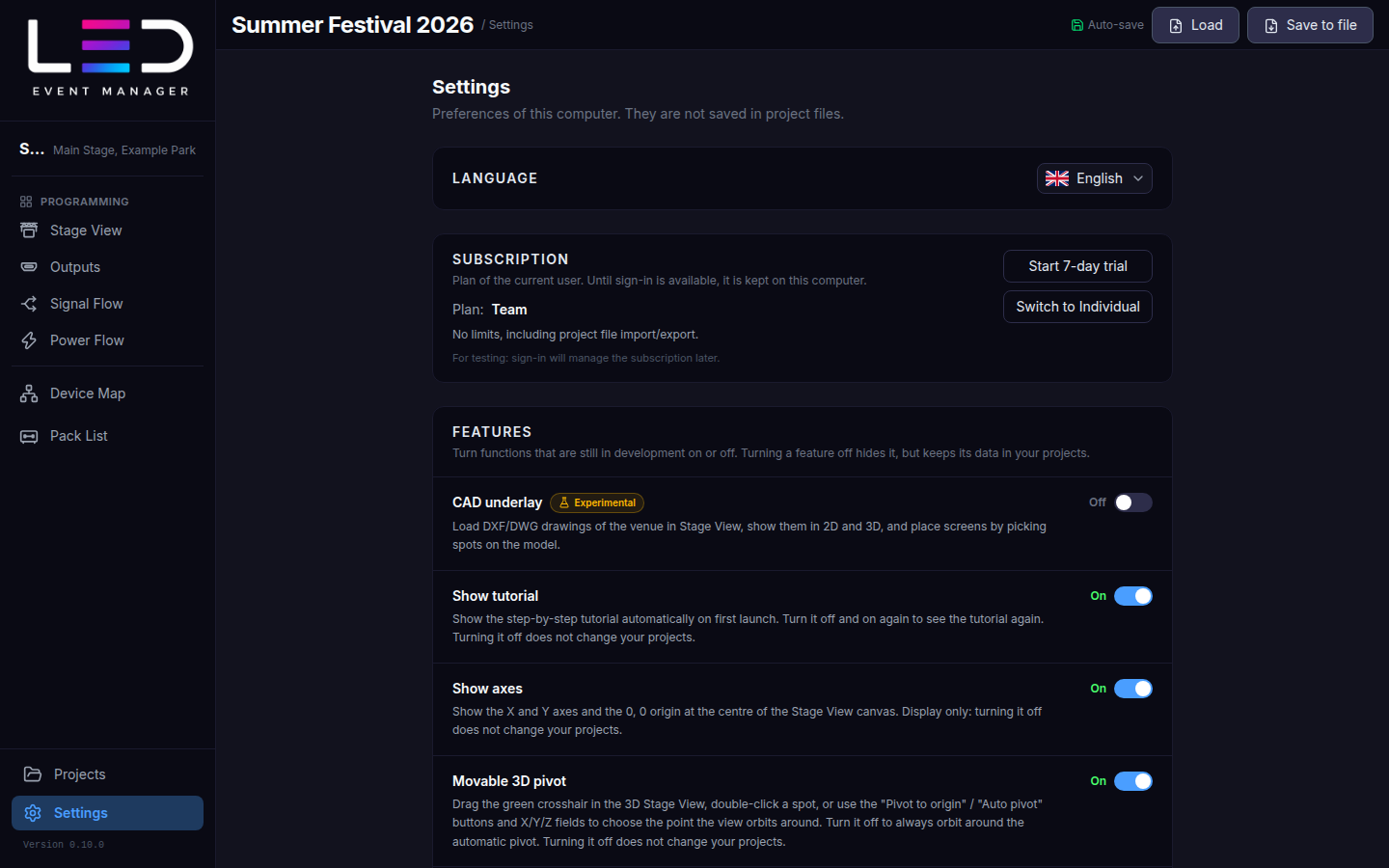
Settings (bottom of the sidebar) holds the preferences of this computer. They are not saved in project files.
Language
Pick one of the eight UI languages. The change applies immediately.
Saving
Every change is always stored on this computer as you work. The Auto-save switch (per computer, off by default) decides when a change also becomes the saved state:
- Auto-save on: every change is the saved state. The toolbar shows Auto-save.
- Auto-save off: the save point is set with File → Save (Ctrl/⌘ + S, or the toolbar indicator — Saved / Unsaved changes, click it to save). Projects open at their last save, and closing the app with unsaved changes asks Save changes? first. Changes newer than the save point stay available through Recover on the Projects page — see Projects → Recover.
Turning auto-save on makes the current state of every project its saved state.
Account
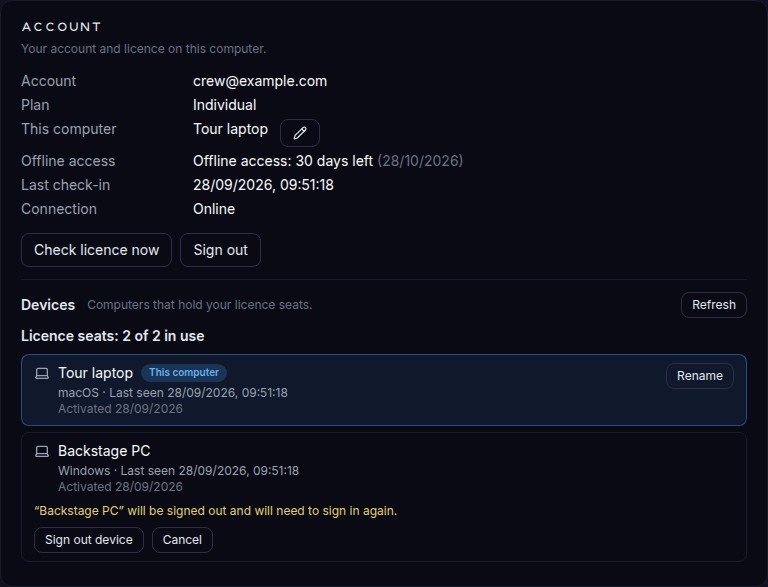
Your account and the licence on this computer: the account, plan, this computer's name, the days of offline access left, the last licence check and the connection. Check licence now confirms the licence online; Sign out signs this computer out.
Switch licence (admin)
Admins of the LED licensing portal also see Switch licence (admin): pick Trial, Individual or — if your account belongs to a team — Team (<team name>), and click Switch licence, for example to try the limits of another plan. The new licence applies at once (Settings → Subscription shows it). It needs an internet connection. Everyone else sees the plan read-only.

Devices
The computers that hold your licence seats, with this computer marked: rename this computer, or — when your licence has more than one seat — sign another computer out. See Signing in and devices.
Sync
The state of the cloud sync of your projects (up to date, syncing, offline with changes queued, or paused) and when it last synced.
- Sync now syncs right away.
- Sync automatically (on by default): when off, changes wait on this computer until you choose Sync now.
- Conflicts to review lists the changes made on two computers at once and which value was kept; Mark as reviewed clears the list. When changes could not be merged, this computer's version is saved as a separate project.
- Resolve sync questions (N) — shown only while questions are pending; it reopens the save-point dialog that was put off with Later.
- Projects made on this computer before your first sign-in are not synced until you click Upload to this account.
Sync questions after a restart
Desktop app with cloud sync: with auto-save off, a project opens at its last save on this computer. When that saved version differs from the copy in the cloud, the app shows the Saved version differs from the cloud dialog after the restart — one row per project, with the device and time of the cloud version. Nothing is uploaded before you answer. Choose per project:
- Keep my saved version — overwrites the cloud version with the version saved here.
- Use the cloud version — overwrites the saved version here; newer unsaved changes of this computer stay available through Recover on the Projects page.
- Keep all mine / Use all from the cloud answer every row at once; Later closes the dialog, and Resolve sync questions (N) above brings it back.
A project that was deleted in the cloud (the row is marked Deleted in the cloud, with who deleted it and when) offers instead:
- Keep my saved version — restores the project in the cloud.
- Delete here too — removes the project from this computer as well, including its saved version and unsaved changes. This cannot be undone.
Subscription
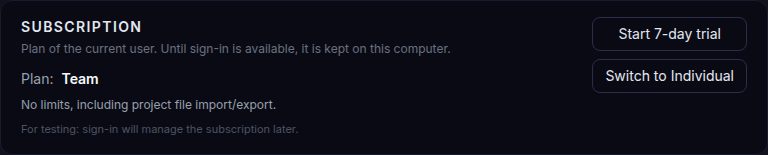
The current plan, the days left of a trial and what the plan includes. See Plans.
User guide
The full documentation of the app — the site you are reading now. Open user guide opens it in your web browser (the app itself never navigates away). The same guide is available in the menu under Help → User guide.
Features
Switches for functions that are optional or still in development. Turning a feature off hides it but keeps its data in your projects.
| Feature | Default | What it does |
|---|---|---|
| CAD underlay (experimental) | Off | DXF/DWG venue drawings in Stage View, placing screens by picking spots on the model |
| Show tutorial | On | The step-by-step tour on first launch; turn it off and on to see it again |
| Show axes | On | X / Y axes and the 0, 0 origin in Stage View |
| Movable 3D pivot | On | Choose the point the 3D view orbits around |
| 3D move/rotate shortcuts (G / R) | On | Keyboard move / rotate with axis locks in 3D |
Updates
New versions are never installed without your consent. The section shows the Current version, the Update channel of this computer (Stable or Beta; switching back to Stable never installs an older version), the Last check and Check for updates, which checks right away. See Updates.
About
Build version, commit, build date and desktop runtime. Copy puts them on the clipboard — paste them into a bug report.