
Appearance
Signing in and devices
LED Event Manager opens only for a signed-in LED account with a valid licence. After one online sign-in it keeps working offline for 30 days.
Each licence has a number of seats: the computers that may use it. Most licences have one seat, so signing in on another computer means replacing the one that holds it.
Signing in on a new computer
On a computer that does not hold a seat yet, signing in is followed by the Activate this computer step:
- Computer name is filled in with the name of this computer (on macOS the name from System Settings → General → About → Name, otherwise the host name without endings such as
.local). Change it if you like — it is how the computer appears in your list of devices. It must be 1 to 64 characters long. - Licence seats shows how many seats are in use and which computers hold them, with their system, when they were last seen and when they were activated.
- Click Activate this computer. The app opens.
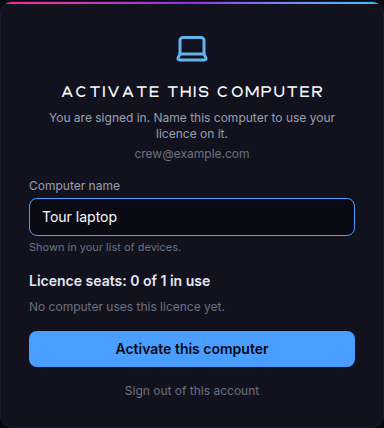
A computer that already holds a seat skips this step and opens directly.
Sign out of this account leaves the step without taking a seat.
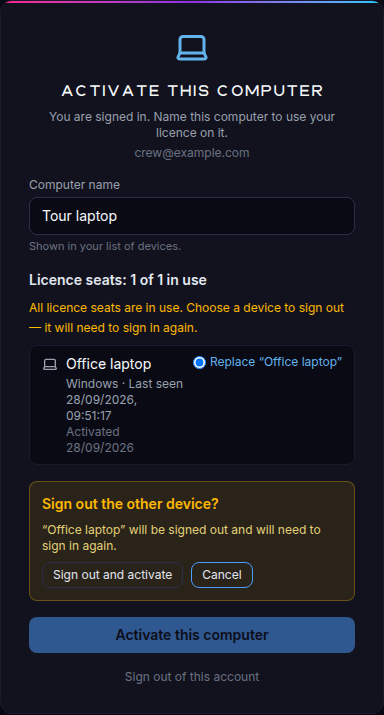
When every seat is in use
If all seats are taken, choose the computer this one replaces (Replace "…") and click Activate this computer. Confirm with Sign out and activate: the other computer is signed out and needs to sign in again before it can use the licence. Cancel changes nothing.
If the list of devices cannot be loaded (for example without an internet connection), the step says so and offers Retry.
Managing devices
Settings → Account → Devices lists the computers that hold your licence seats; this computer is marked This computer.
- Rename changes the name of this computer.
- When your licence has more than one seat, Sign out next to another computer signs it out after you confirm with Sign out device. It needs to sign in again to use the licence, which frees its seat for another computer.
- Refresh reloads the list.
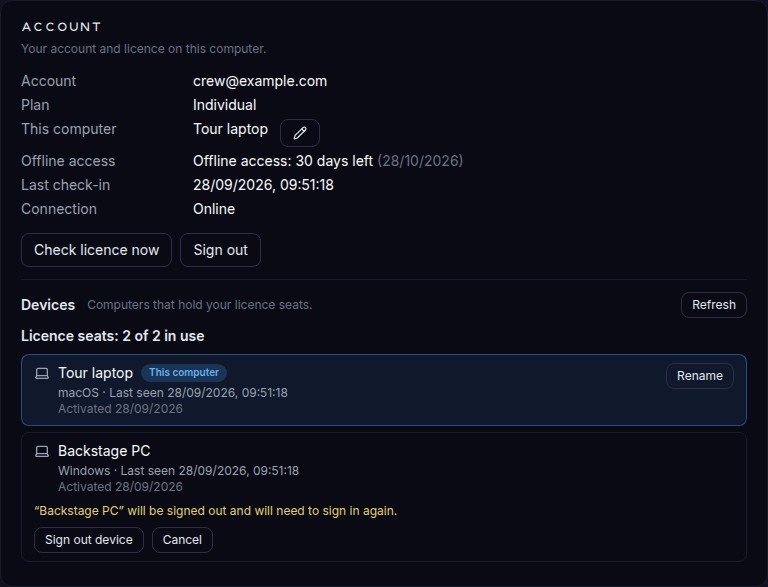
To sign out this computer, use Sign out under the account details.
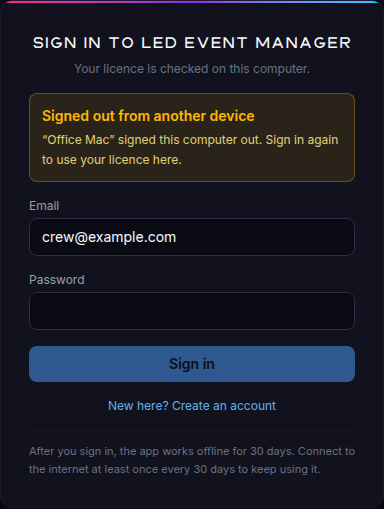
Signed out from another device
When this computer is signed out from another one (in its device list, or by replacing it while activating), the app closes its window and shows Signed out from another device, naming the computer that did it. Your projects stay on this computer; sign in again to continue.