

Saving your work
Every change you make is stored on this computer as you work — you cannot lose work by not saving. What you choose is when a change also becomes the saved state of the project, the state a project opens in.
Auto-save and the save point
Settings → General → Saving has one switch, Auto-save, set per computer and off by default:

| Auto-save | Toolbar shows | What it means |
|---|---|---|
| On | Auto-save | Every change is the saved state at once. |
| Off (default) | Saved | The project has no changes since its last save. |
| Off (default) | Save changes (a button) | The project has changes since its last save. Click it — or use File → Save, Ctrl/⌘ + S — to make them the saved state. |
With auto-save off, the last save is the project's save point: the project opens at it, and changes made after it are not part of the saved state until you save again. Turning auto-save on makes the current state of every project its saved state.
Closing the app with unsaved changes
With auto-save off, closing the app while a project has unsaved changes asks Save changes? first:
- Save saves and closes.
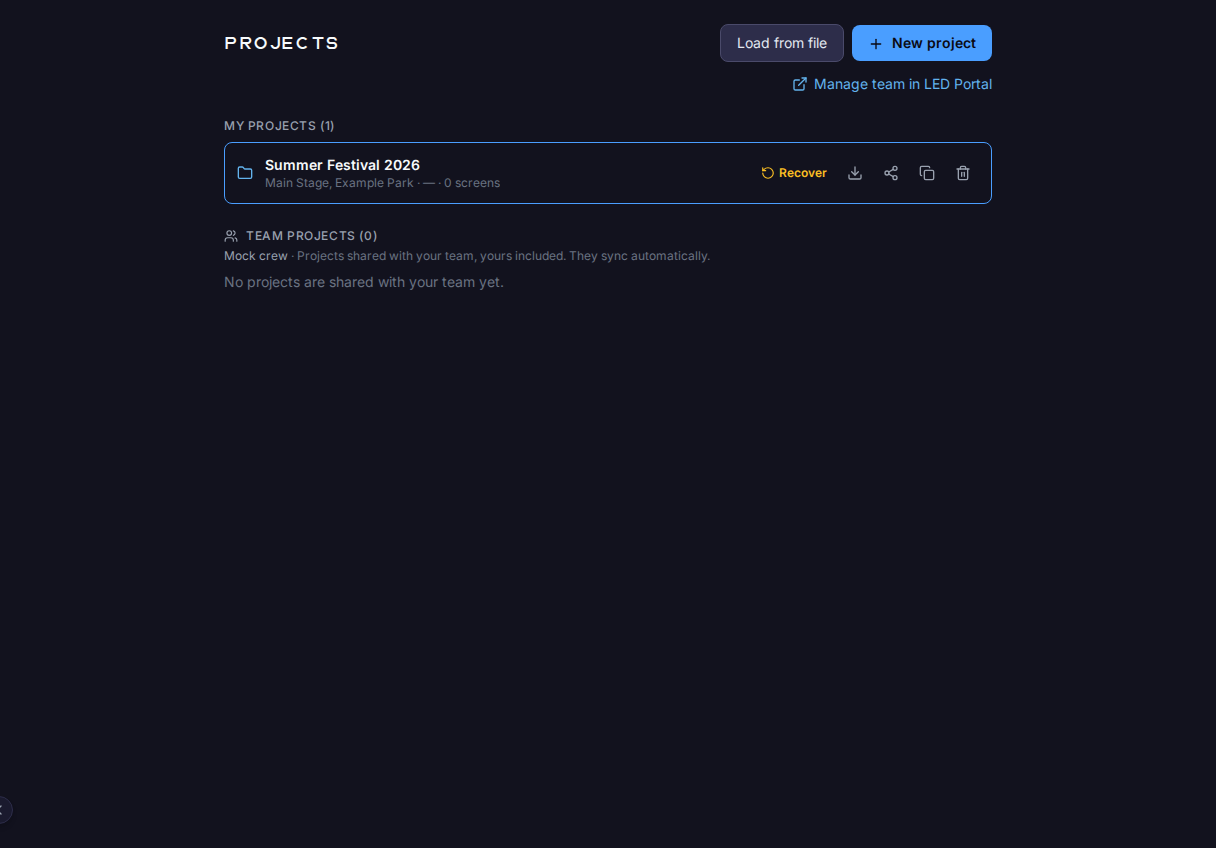
- Don't save closes without saving. The changes are not lost: they stay available through Recover on the Projects page.
- Cancel keeps the app open.
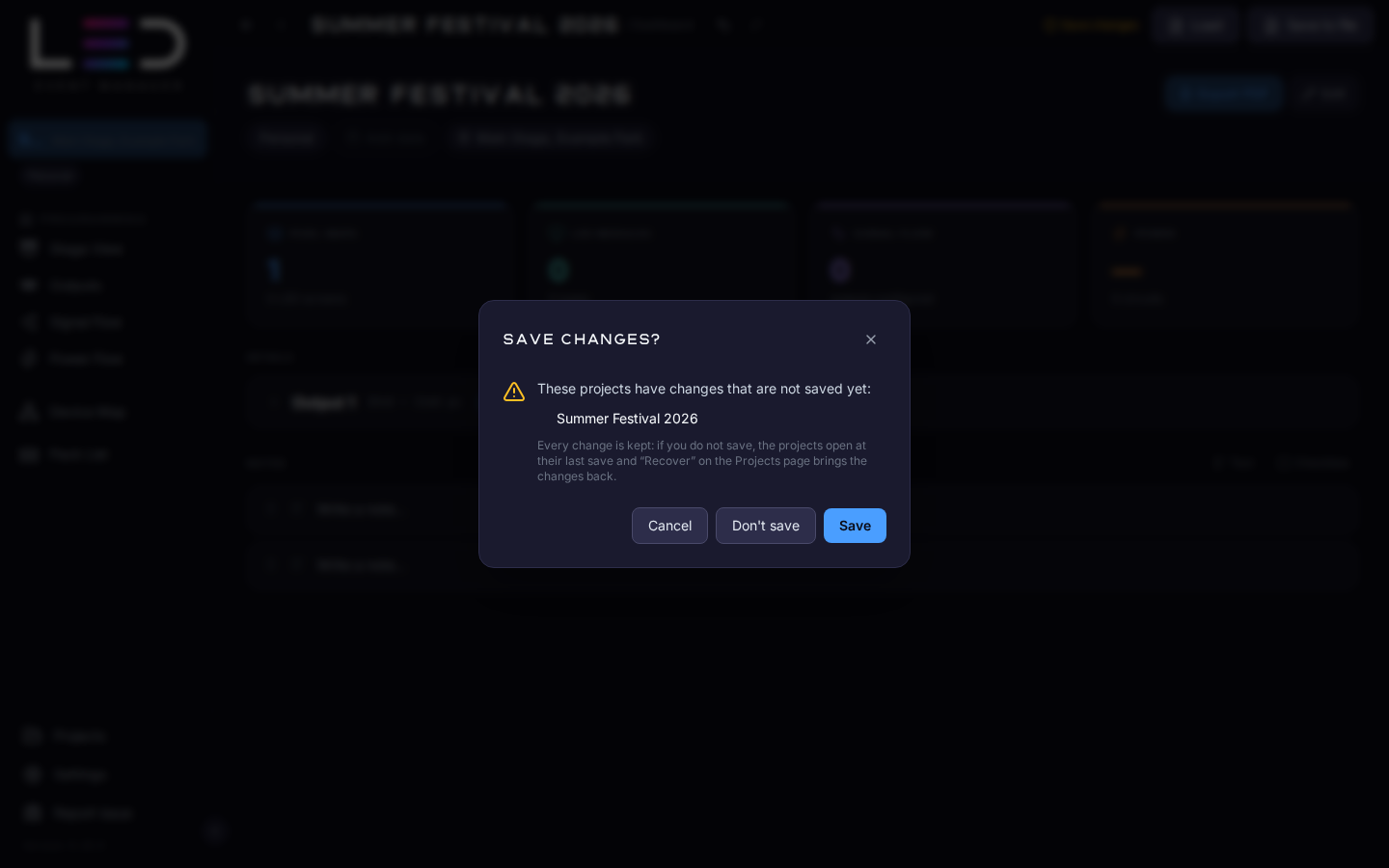
The same question comes up before an update is installed with Restart to update — see Updates.
Recover
A project that has changes newer than its save point shows Recover on the Projects page. Recover makes those latest changes the saved state and opens the project. Nothing is lost either way: a project you open at its save point still has the newer state available through Undo.
Project files
To move a project to another computer, send it to a colleague or keep an archive copy, save it to a project file (Save to file in the toolbar) and load it elsewhere (Load) — on the Individual and Team plans. See Projects → Project files.
Where your projects are stored
| Folder | |
|---|---|
| Windows | %APPDATA%\LED Event Manager |
| macOS | ~/Library/Application Support/LED Event Manager |
Open the folder with Open data folder in Settings → General → Saving. The project data is encrypted with a key protected by the operating system (DPAPI on Windows, Keychain on macOS), so the folder cannot simply be copied to another computer — use project files or the cloud sync for that. Uninstalling the app leaves the folder in place.
Cloud sync Team plan
On the Team plan your signed-in account keeps a copy of your projects and syncs them between your computers in the background — see Cloud sync and team projects. On Individual your projects stay on this computer; project files move them to another one.