
Cloud sync and team projects Team plan
On the Team plan your LED account keeps a copy of your projects in the cloud and syncs them between the computers you sign in on. Syncing runs in the background whenever the app is online; the projects on this computer stay complete and usable offline.
Team plan
Cloud sync and team projects are part of the Team plan. On Individual and in the trial nothing is synced: the toolbar shows no sync status, and Settings → Account → Sync says Cloud sync is part of the Team plan. Your projects stay on this computer; use project files to move them to another computer. Moving from Team to Individual keeps your projects here and their copies in the account — see Plans.
The sync status
The toolbar shows the state of the cloud sync next to the save indicator — Synced, Syncing…, Offline, Sync error, Not synced yet, or the number of pending changes and conflicts. Click it to open the sync details in Settings.
Settings → Account → Sync shows:
- the state — Up to date, Syncing…, Offline — changes are queued or Sync paused — and when the last sync happened;
- Sync now, shown when changes are waiting, syncs right away;
- Sync automatically (on by default). When off, changes wait on this computer until you choose Sync now;
- Upload to this account for projects made on this computer before your first sign-in — they are not synced until you click it. Only projects of your account are uploaded; a project the cloud refuses for your account (it belongs to another account) is never retried and shows as not synced — owned by another account;
- Conflicts to review and Resolve sync questions (N) — see below.
Conflicts
When the same project was changed on two computers at once, the changes are merged. The project shows a note that changes from another computer were merged in (its undo history before that point is cleared), and Conflicts to review in Settings lists which value was kept for each conflicting field. Mark as reviewed clears the list.
When changes could not be merged, the other computer's version stays in the project and this computer's changes are saved as a separate project — the note names the copy.
Sync questions after a restart
With auto-save off, a project opens at its last save on this computer. When that saved version differs from the copy in the cloud, the app asks after the restart: Saved version differs from the cloud — one row per project, with the device and time of the cloud version. Nothing is uploaded before you answer. Choose per project:
- Keep my saved version — overwrites the cloud version with the version saved here.
- Use the cloud version — overwrites the saved version here; newer unsaved changes of this computer stay available through Recover on the Projects page.
- Keep all mine / Use all from the cloud answer every row at once. Later closes the dialog; Resolve sync questions (N) in Settings brings it back.
A project that was deleted in the cloud (the row says so, with who deleted it and when) offers instead:
- Keep my saved version — restores the project in the cloud.
- Delete here too — removes the project from this computer as well, including its saved version and unsaved changes. This cannot be undone.
Restoring projects on a new computer
Sign in on the new computer and the projects of your account are synced down (on Individual, bring them along as project files). Should the app ever say Projects could not be opened on this computer (the local data could not be unlocked), the projects are restored from the cloud sync once you sign in — see Troubleshooting.
Team projects Team plan
You belong to one team at most. On the Team plan, the Projects page shows two groups:
- My projects — your own projects. A project you share with your team stays here and shows a shared with team icon (👥) next to its name.
- Team projects — only while you are in a team: every project shared with your team, your own shared ones included. Each row shows its Owner: You for your own projects, else the owner's name and surname (their e-mail address until they add a name — see Name and surname), and the Last change in the cloud: when, and who uploaded it. They sync automatically through your LED account. Click a team project to open it like any other project; one that has not reached this computer yet is listed as Not on this computer yet with its revision number. Click it to download and open it, or use Download to this computer to only bring it here.
Without a team, only My projects is shown.
The New project dialog has a Save in choice: My projects or your team. As the owner of a project you share it with Share with my team… on its row. The pop-up has three buttons:
- Share with my team — everyone in your team sees the project and its changes. For a project that is already shared, this button is Stop sharing: the project stays only in My projects.
- Copy to my team — a copy goes to the team (you own it); the original stays as it is.
- Cancel — closes the pop-up without a change.
Without a team, the share button is hidden. Sharing needs a connection; when the server refuses (for example, the team's plan is not active), the pop-up says why in words and the project keeps its teams.
Only the owner of a project can delete it. A team admin who is not the project's owner can take it out of the team with Remove from this team on its row in Team projects (the app asks first); the project itself stays with its owner. Other members see neither button.
Both also work on a row that is Not on this computer yet — for example your own copy made with Copy to my team on another computer, or one you deleted locally before the deletion reached the server. Such a row also downloads the project (see above), and the next sync brings it back by itself unless one of your own changes to it is still waiting to be sent. Its owner removes it from the team for everyone with Delete from team (the app asks first: team members lose it); a team admin can Remove from this team as above. The row disappears for every member at their next refresh.
Your team
The app has no Teams page: the team is managed in LED Portal (the Team page) — members and their roles, licences, invites and billing. A team has two roles, Admin and Member; any admin manages the team, and a team always keeps at least one admin. Admins open the portal with Manage team in LED Portal on the Projects page.
Roles. Admins buy and hand out the team's licences (seats), invite people, change roles, remove members, and rename or delete the team. A team can have several admins, and every admin can do all of this; the person who created the team is its first admin. Members use the team's licence and its shared projects, and can leave the team. The last admin cannot step down to Member, be removed or leave (A team needs at least one admin): make someone else an admin first, or delete the team.
One team per account. You belong to one team at most; to join another team, leave yours in LED Portal first. Creating a team needs the Team plan on your own account and no team membership. Without a team you use your own plan.
Invites for you arrive as an e-mail from LED Portal with the team's name and an invitation link. The link is what joins the team: it proves the invitation reached your mailbox, works once and is valid for 14 days. Open it in the browser, sign in with the invited e-mail address (or create your account in the app with that address first) and choose Join the team — or paste the link into the notice the app shows at the top of the Projects page while an invitation is waiting for your account. That notice does not name the team (the e-mail does); Accept sends the pasted link, Decline hides the invite on this computer. Joining takes one of the team's seats. When joining is not possible the notice says why, for example:
- Paste the whole invitation link — the field needs the link (or its token) from the e-mail.
- This invitation link is not valid any more — it was used, withdrawn or has expired; ask a team admin for a new invitation.
- This team has no free licence — ask a team admin to free one, then accept again.
- You are already in a team — you belong to one team at most; leave your current team in LED Portal first.
- This team cannot take new members right now — the team's plan is not active; ask a team admin.
After you join, the app refreshes your account and the Team projects group appears at once. Your team and your role in it are listed under Settings → Account.
Teams were reset
When the one-team rule arrived, every existing team was removed. Your projects stayed with you in My projects; create or join a team again to share them.
Custom cabinets and devices Team plan
Your custom cabinet and device library syncs with your LED account, including items that no project uses yet. On the first sync after updating, this computer uploads its library. Changes made offline stay queued until the next connection or Sync now.
When you open a team project, its custom cabinets and devices arrive with it. They appear in the pickers while that project is open. Team members can edit these shared definitions; the change applies to every project using the item. If two computers edit the same item offline, the later edit wins when they sync.
Only the owner can delete an item from their library. Existing projects keep the definition and continue drawing their screens and device nodes. A teammate's item is available within its linked projects; it does not become part of your own library.
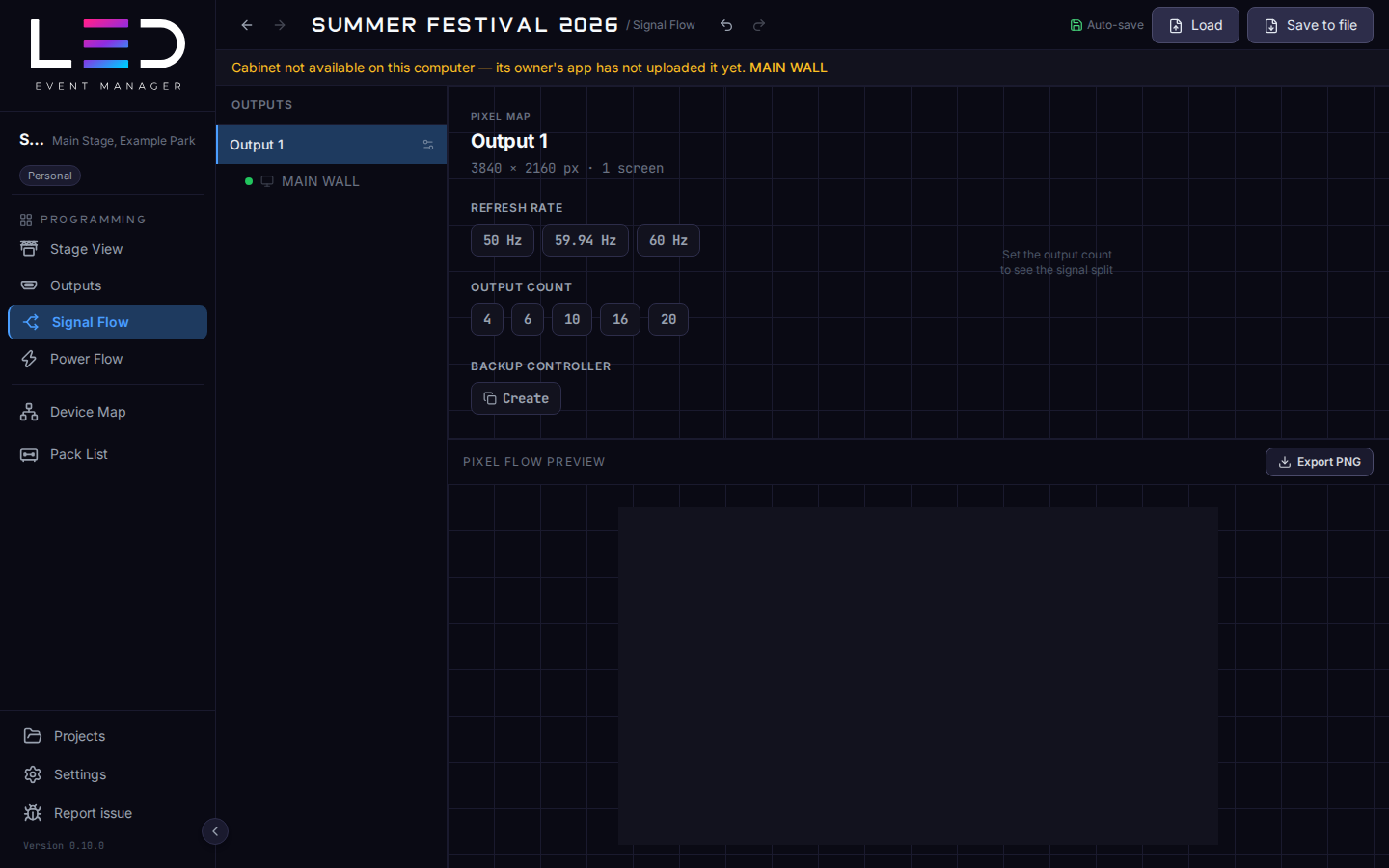
For older projects, Stage View and Signal Flow may show Cabinet not available on this computer — its owner's app has not uploaded it yet. The message names the affected screens. Ask the owner to open the updated app and sync from the computer that holds the cabinet definition. The project then receives it automatically.
Project files keep bundling the definitions they use, including team items.