

Plans: Trial, Individual, Team
Every new account starts with a 14-day trial, unless it was created with a promo code that grants another plan. The plan — Trial, Individual or Team — comes from the licence of your LED account: it is chosen and changed in your LED account, not in the app.
| Trial | Individual | Team | |
|---|---|---|---|
| Duration | 14 days | No end | No end |
| Computers at the same time (seats) | 1 | 2 | 2 per person |
| Screens per project | up to 3 | unlimited | unlimited |
| Outputs per project | up to 2 | unlimited | unlimited |
| All design modules (Stage View … Dashboard) | ✓ | ✓ | ✓ |
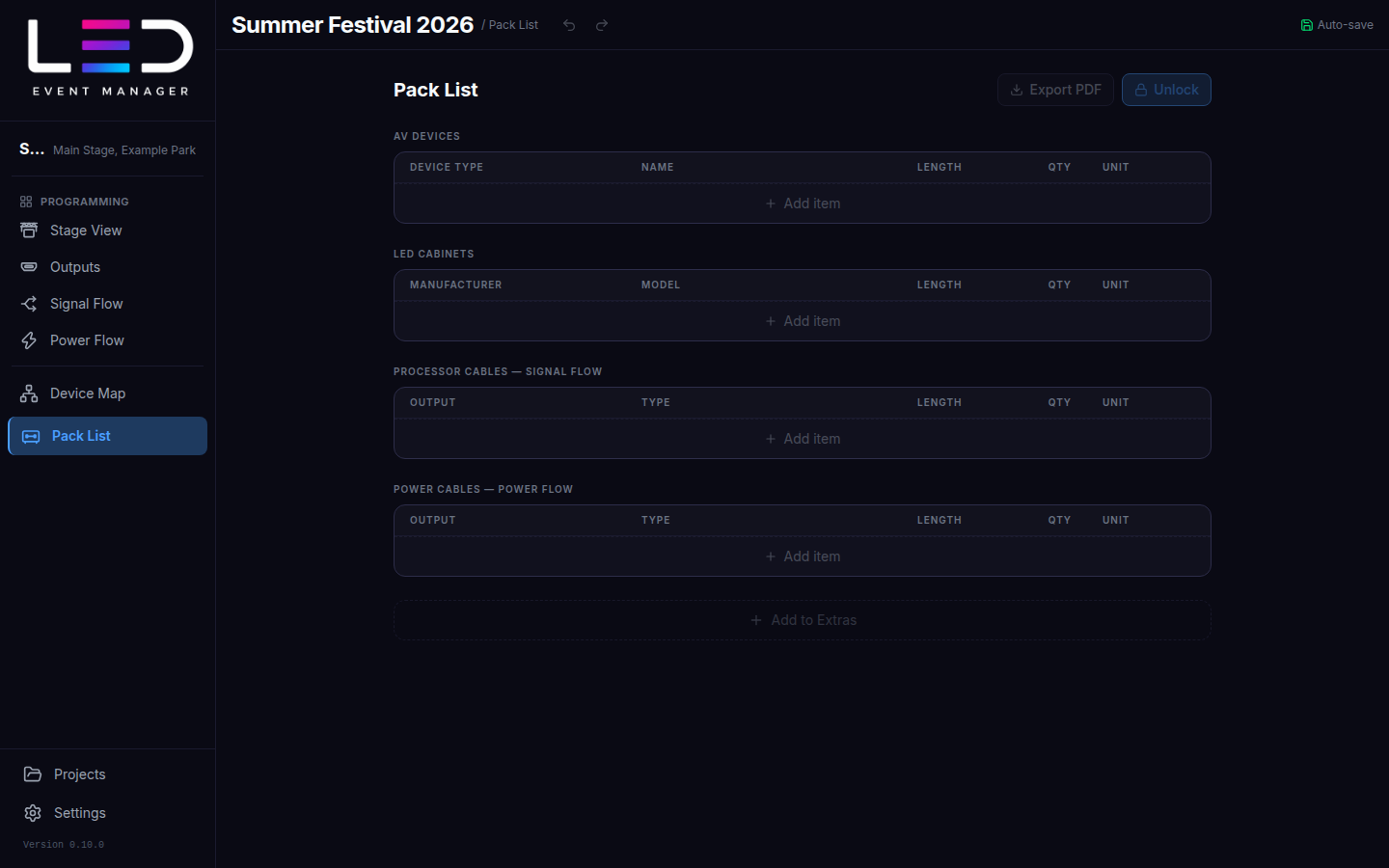
| Edit the Pack List | locked | ✓ | ✓ |
| Export (PDF report, PNG, SVG, Resolume XML) | — | ✓ | ✓ |
| The LED Event Manager logo on the screens and in their exports | always shown | shown, can be hidden | shown without your own logo, can be hidden |
| Your own project logo on the screens and in their exports | — | — | ✓ |
Project files: load and save .json / .zip project files | — | ✓ | ✓ |
| Cloud sync: a copy of your projects in your LED account, synced between your computers | — | — | ✓ |
| Team projects: projects shared with your team | — | — | ✓ |
In this guide, everything that needs the Team plan is marked
Team plan.Where to see your plan
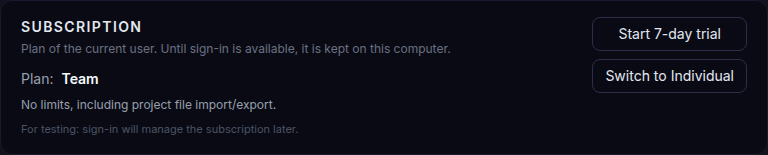
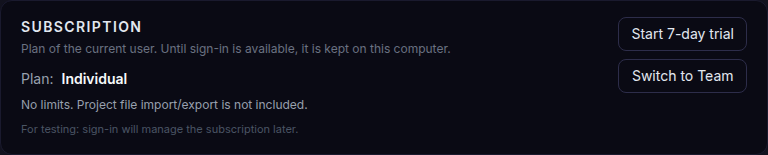
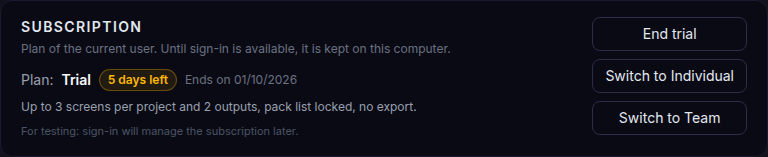
Settings → Account → Subscription shows the current plan, the days left of a trial and what the plan includes. It is read-only: the plan is managed in your LED account. Settings → Account shows the plan too, next to the account details.
Changing the plan
Renew, upgrade or change the plan in your LED account. The app picks the new licence up the next time it confirms the licence online — click Check licence now in Settings → Account to do it right away.
What changes between Individual and Team
Both paid plans have every design module, every export and project files: the toolbar has Load and Save to file, the Projects page Load from file and Export project file, so you can hand a project to a colleague or move it to another computer as a file — see Projects → Project files.
Team adds the cloud and your own logo:
- Cloud sync Team plan — your LED account keeps a copy of your projects and syncs them between the computers you sign in on; the toolbar shows the sync status next to the save indicator. On Individual nothing is synced: your projects stay on this computer, Settings → Account → Sync says Cloud sync is part of the Team plan, and project files are the way to another computer.
- Team projects Team plan — projects shared with your team, see Cloud sync and team projects.
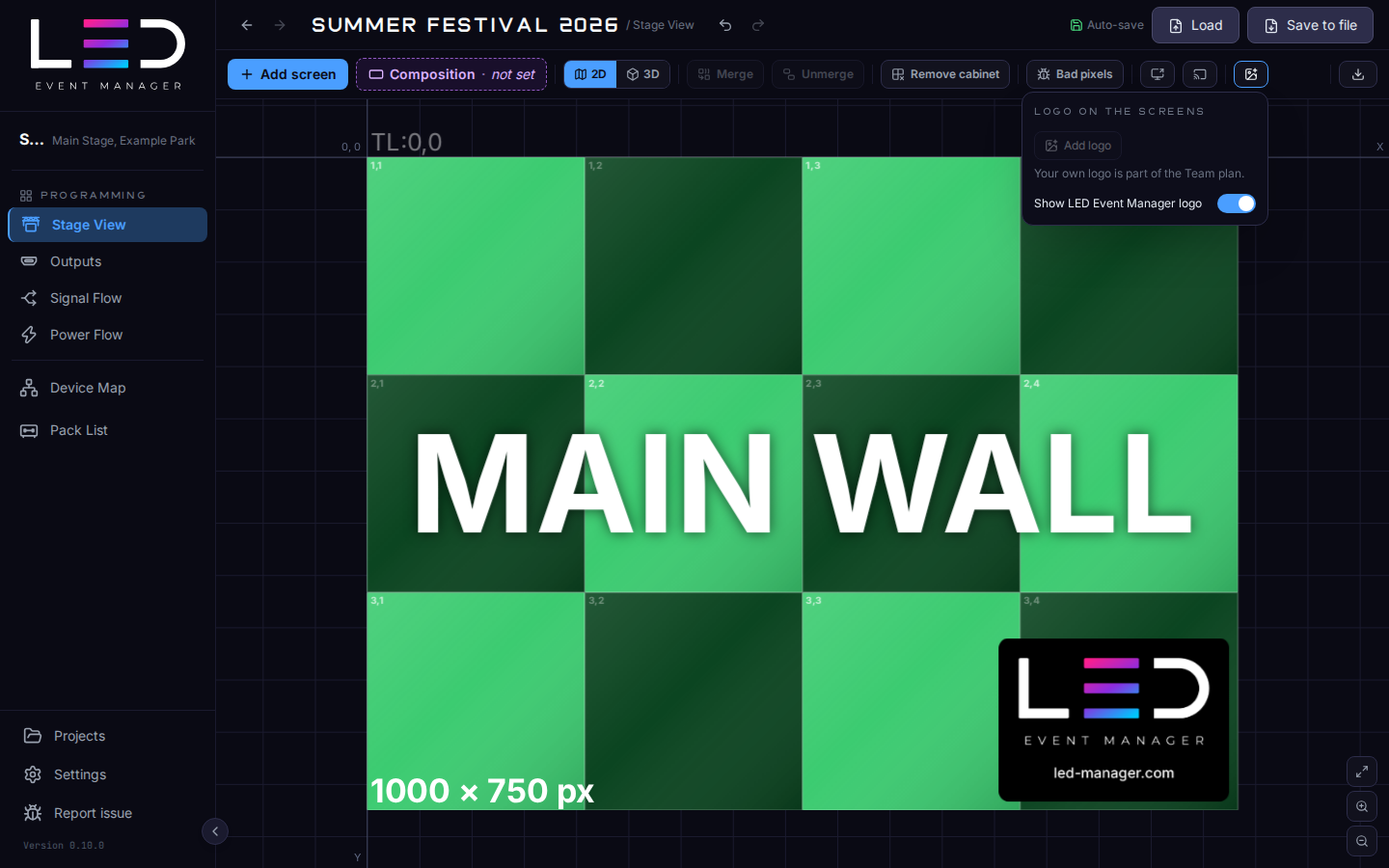
- Your own logo Team plan — the screens show your project's own logo (for example the event's) instead of the LED Event Manager logo, see Stage View → Logo on the screens, and so do the files exported from them. On Individual the screens and their exports show the LED Event Manager logo with led-manager.com, which you can hide for a project; the upload is locked and says "Your own logo is part of the Team plan."


Own logos set on Individual
Earlier versions of the app let Individual set a project's own logo too. Such a logo is not deleted: it stays saved in the project, is not drawn on Individual (the screens show the LED Event Manager logo instead) and comes back as soon as the account is on the Team plan.
Moving from Team to Individual
When your plan changes from Team to Individual, your projects stay on this computer and their copies in your LED account stay there too — nothing is deleted and nothing is reported as a conflict. Syncing simply stops: changes made from now on are not uploaded, the sync status leaves the toolbar, and the projects of your team are no longer listed. Once the account is back on the Team plan, syncing picks up where it left off and the changes made meanwhile are uploaded.
A project's own logo stays saved too, but Individual doesn't draw it: the screens show the LED Event Manager logo (or none, if the project hides it). The own logo is back on the Team plan.
Trial limits
In the trial every button stays visible. When you reach a limit, the app shows a short message instead of doing the action, for example "The trial allows up to 3 screens per project." or "Export is not available in the trial.". Project files are not available in the trial: their toolbar buttons are not shown, and the menu commands answer "Project file import and export are part of the Individual and Team plans."
The screen limit counts each screen once, as Stage View and Outputs show it: a screen cut between outputs is one screen, and so is a merged screen, however many parts it has. Unmerge gives the parts back as screens of their own, so in the trial it shows the screen limit message instead when they would take the project over 3 screens. Delete a screen first, or keep the parts merged.
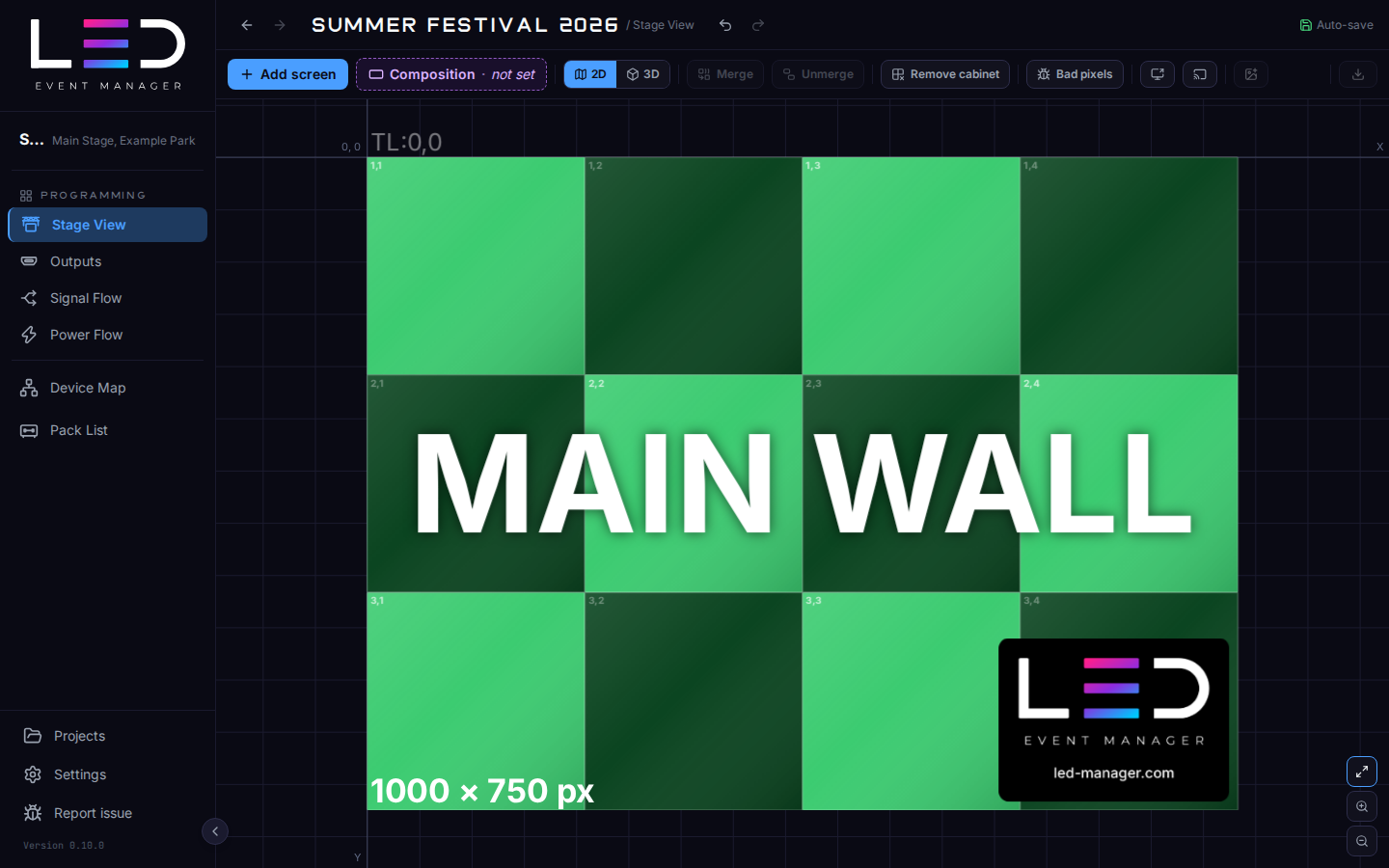
In the trial the screens always show the LED Event Manager logo with led-manager.com under it: in Stage View, the Outputs pixel maps, the Signal Flow and Power Flow drawings and the display and NDI outputs. It can't be hidden or resized: the Logo button in the Stage View toolbar and the screen's Logo size are locked and say "Your own logo is part of the Team plan. The trial always shows the LED Event Manager logo." A project that hides the LED Event Manager logo on a paid plan shows it in the trial. A logo already saved in a project (for example one made on the Team plan) is kept as it is: it is just not drawn in the trial, and it shows again on Team. Changing the plan never changes your projects.
The pack list is shown but stays locked:
When the plan has ended
When the licence says the plan has ended — the trial ran out, or a subscription was not renewed — the app shows Your plan has ended instead of opening. Your projects stay safe on the computer.
- Check again re-checks the licence with your LED account. Renew or change the plan in the account first; when the licence is valid again, the app opens.
- Sign out signs this computer out and returns to the sign-in window.
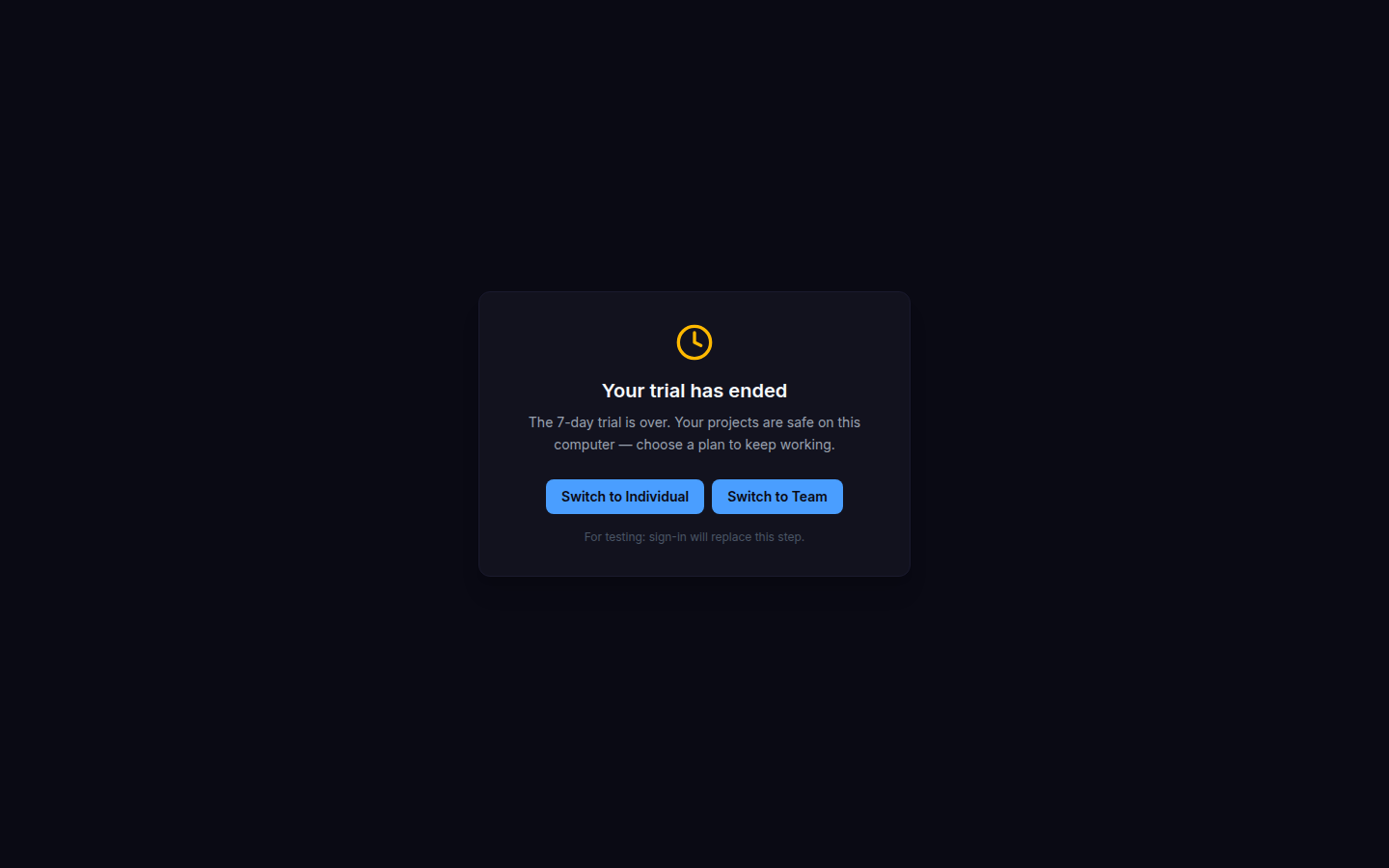
If the computer clock was set back, the sign-in window asks to Check the date and time instead — correct the clock and sign in again.