

Appearance
Projects
Every event is a project. Open the Projects window from the sidebar (or Ctrl/⌘ + O).
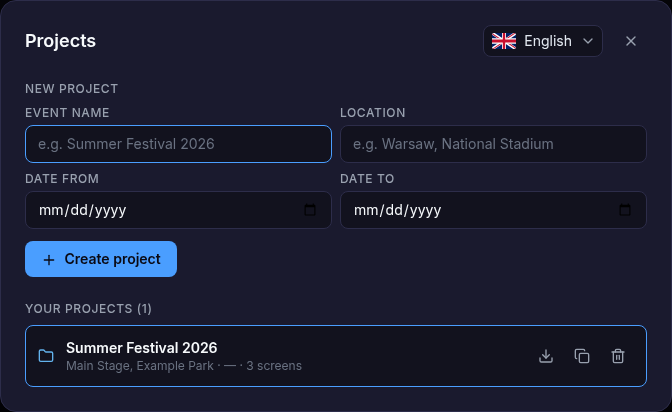
Create a project
Fill in Event name (required), Location, Date from and Date to, then click Create project. Ctrl/⌘ + N starts a new project too. The new project has one empty output (Output 1) and opens right away.
Open, recover, duplicate, delete
Under Your projects click a project to open it. The buttons on the right of each row:
| Button | Action | Plan |
|---|---|---|
| ↩ Recover | Makes the latest changes the saved state and opens the project — shown only when the project has changes newer than its save point (auto-save off), see Recover | all plans |
| ⬇ Export project file | Saves the project as a file | Team plan |
| ⧉ Duplicate | Makes a copy — "name (copy)" | all plans |
| 🗑 Delete | Deletes the project after a confirmation | all plans |
The language of the app can also be changed from the list at the top of the window.
Recover
Every change is stored on the computer as you work. With Auto-save off (the default; see Settings → Saving), the last save — File → Save, Ctrl/⌘ + S, or the toolbar indicator — is the project's save point: the project opens at it, and changes made after it are not part of the saved state. The Recover button next to such a project makes the latest changes its saved state and opens the project. Nothing is lost either way: changes left behind by Don't save in the "Save changes?" dialog when closing the app stay recoverable here.
Project files Team plan
Projects are stored on the computer as you work (see Saving). To move a project to another computer, send it to a colleague or keep an archive copy, use project files:
| Command | Where | Shortcut |
|---|---|---|
| Save to file | Toolbar, or Export project file in Projects | Ctrl/⌘ + Shift + S |
| Load | Toolbar, or Load from file on the welcome screen | Ctrl/⌘ + Shift + O |
- A project is saved as
.json, or as.zipwhen it carries a CAD drawing. - Loading a file adds it as a new project; nothing on the computer is overwritten.
- A file saved by a newer version of the app asks you to update the app first.
Team plan
Loading and saving project files is part of the Team plan. On Individual and in the trial these buttons are not shown. See Plans.
Team projects Team plan
On the Team plan the Projects window also lists Team projects — projects shared with your team, synced automatically through your LED account.