

Devices and seats
Each licence has a number of seats: the computers that may use it at the same time. Every licence has two seats, so you can use it on two computers at once; a third computer takes the seat of one you pick. The computers that hold your seats are your devices.
Your devices
Settings → Account → Devices lists the computers that hold your licence seats, with their system, when they were last seen and when they were activated. This computer is marked This computer.
- Rename changes the name of this computer (1 to 64 characters). The pencil next to This computer in the account details does the same.
- Sign out next to another computer — available when your licence has more than one seat — signs it out after you confirm with Sign out device. That computer needs to sign in again to use the licence, which frees its seat for another one.
- Refresh reloads the list.
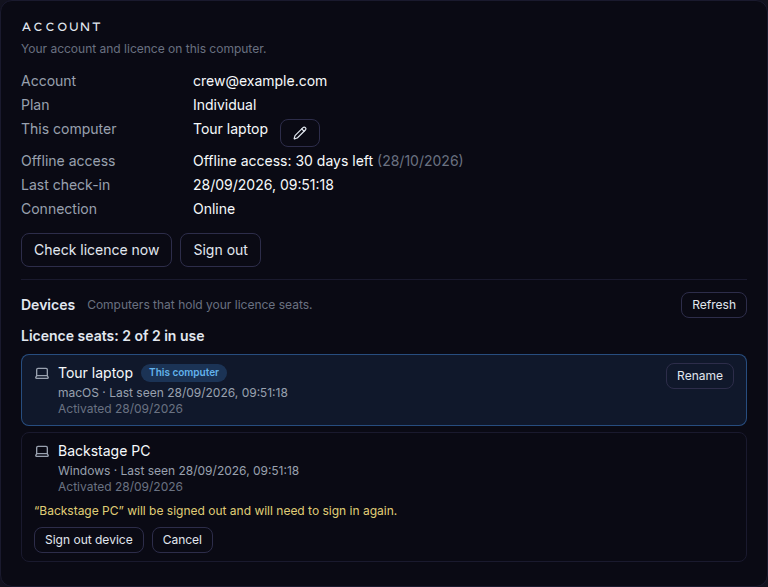
To sign out this computer, use Sign out under the account details.
Moving to another computer
Install the app on the new computer and sign in. When every seat is in use, the Activate this computer step lets you pick the computer to replace: it is signed out, and the new one takes its seat. Your projects are not moved by this — bring them along with the cloud sync of your account Team plan or with project files.
Signed out from another device
When this computer is signed out from another one — in its device list, or by replacing it while activating — the app closes its window and shows Signed out from another device, naming the computer that did it. Your projects stay on this computer; sign in again to continue (this takes a seat back, and may in turn sign the other computer out).
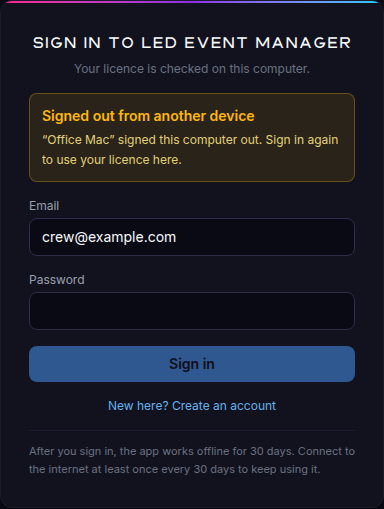
The sign-in window can also say Licence moved to another computer — the same situation, noticed when the app next confirmed the licence online. Sign in again to use the licence here; the other computer is signed out.