
云同步与团队项目
你的 LED 账户会在云端保存项目的副本,并在你登录的各台电脑之间同步。应用在线时,同步 在后台进行;这台电脑上的项目保持完整,可离线使用。
同步状态
工具栏会在保存指示器旁显示云同步的状态 — 已同步、正在同步…、离线、 同步出错、尚未同步,或待处理的更改和冲突的数量。点击它可在设置中打开同步详情。
设置 → 账户 → 同步 显示:
- 状态 — 已是最新、正在同步…、离线 — 更改已排队 或 同步已暂停 — 以及上次同步的时间;
- 立即同步,在更改等待处理时显示,可立即同步;
- 自动同步(默认开启)。关闭后,更改会保留在这台电脑上,直到你选择 立即同步;
- 上传到此账户,用于你首次登录之前在这台电脑上创建的项目 — 点击之前它们不会 同步;
- 待查看的冲突 和 处理同步问题(N) — 见下文。
冲突
当同一个项目在两台电脑上同时被修改时,更改会合并。项目会显示一条备注,说明来自另一台 电脑的更改已合并(此前的撤销历史会被清除),设置中的 待查看的冲突 会列出每个冲突 字段保留了哪个值。标记为已查看 会清空列表。
当更改无法合并时,另一台电脑的版本会保留在项目中,这台电脑的更改会另存为一个单独的 项目 — 备注中会写明该副本的名称。
重启后的同步问题
如果自动保存已关闭,项目会以这台电脑上最后 一次保存的状态打开。当该保存版本与云端副本不同时,应用会在重启后询问:已保存的版本 与云端不同 — 每个项目一行,并显示云端版本的设备和时间。在你回答之前,不会上传任何 内容。请逐个项目选择:
- 保留我保存的版本 — 用这里保存的版本覆盖云端版本。
- 使用云端版本 — 覆盖这里保存的版本;这台电脑上较新的未保存更改仍可通过项目页面的 恢复 找回。
- 全部保留我的 / 全部使用云端 可一次处理所有行。稍后 会关闭对话框; 设置中的 处理同步问题(N) 会将它重新打开。
对于 已在云端删除 的项目(行中会说明,并显示删除者和删除时间),改为提供:
- 保留我保存的版本 — 在云端恢复该项目。
- 在此处也删除 — 同时从这台电脑上删除该项目,包括其保存版本和未保存的更改。此操作 无法撤销。
在新电脑上恢复项目
在新电脑上登录,你账户中的项目就会同步下来。如果应用显示 无法在这台电脑上打开项目 (本地数据无法解锁),登录后项目会从云同步中恢复 — 参见故障排除。
团队项目 团队版
在团队版中,项目页面还会列出 团队项目:与你的团队共享的 项目。它们通过你的 LED 账户自动同步,每个项目都显示其版本号。点击团队项目,即可像其他 项目一样打开。
Custom cabinets and devices Team plan
Your custom cabinet and device library syncs with your LED account, including items that no project uses yet. On the first sync after updating, this computer uploads its library. Changes made offline stay queued until the next connection or Sync now.
When you open a team project, its custom cabinets and devices arrive with it. They appear in the pickers while that project is open. Team members can edit these shared definitions; the change applies to every project using the item. If two computers edit the same item offline, the later edit wins when they sync.
Only the owner can delete an item from their library. Existing projects keep the definition and continue drawing their screens and device nodes. A teammate's item is available within its linked projects; it does not become part of your own library.
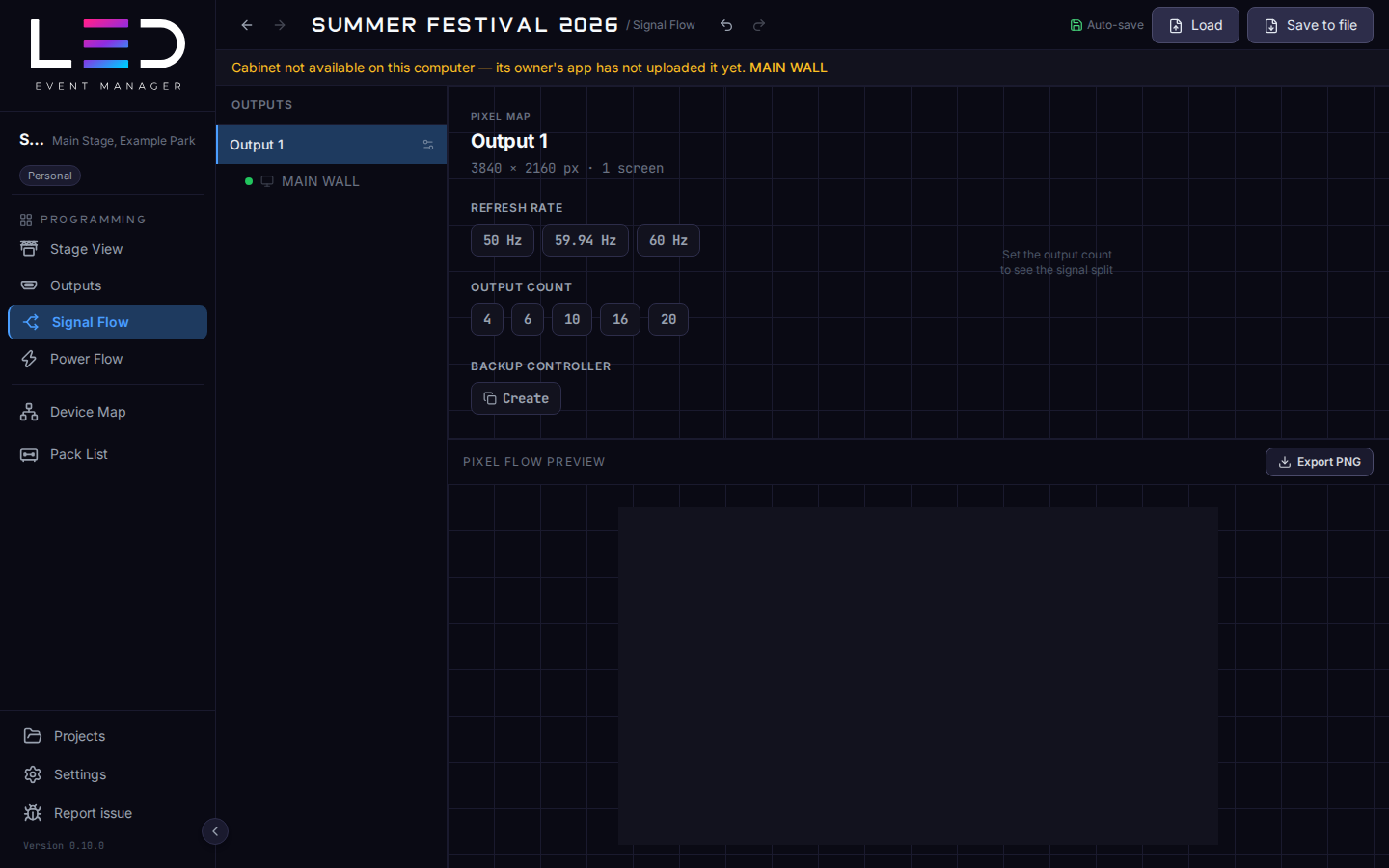
For older projects, Stage View and Signal Flow may show Cabinet not available on this computer — its owner's app has not uploaded it yet. The message names the affected screens. Ask the owner to open the updated app and sync from the computer that holds the cabinet definition. The project then receives it automatically.
Project files keep bundling the definitions they use, including team items.