

设备图
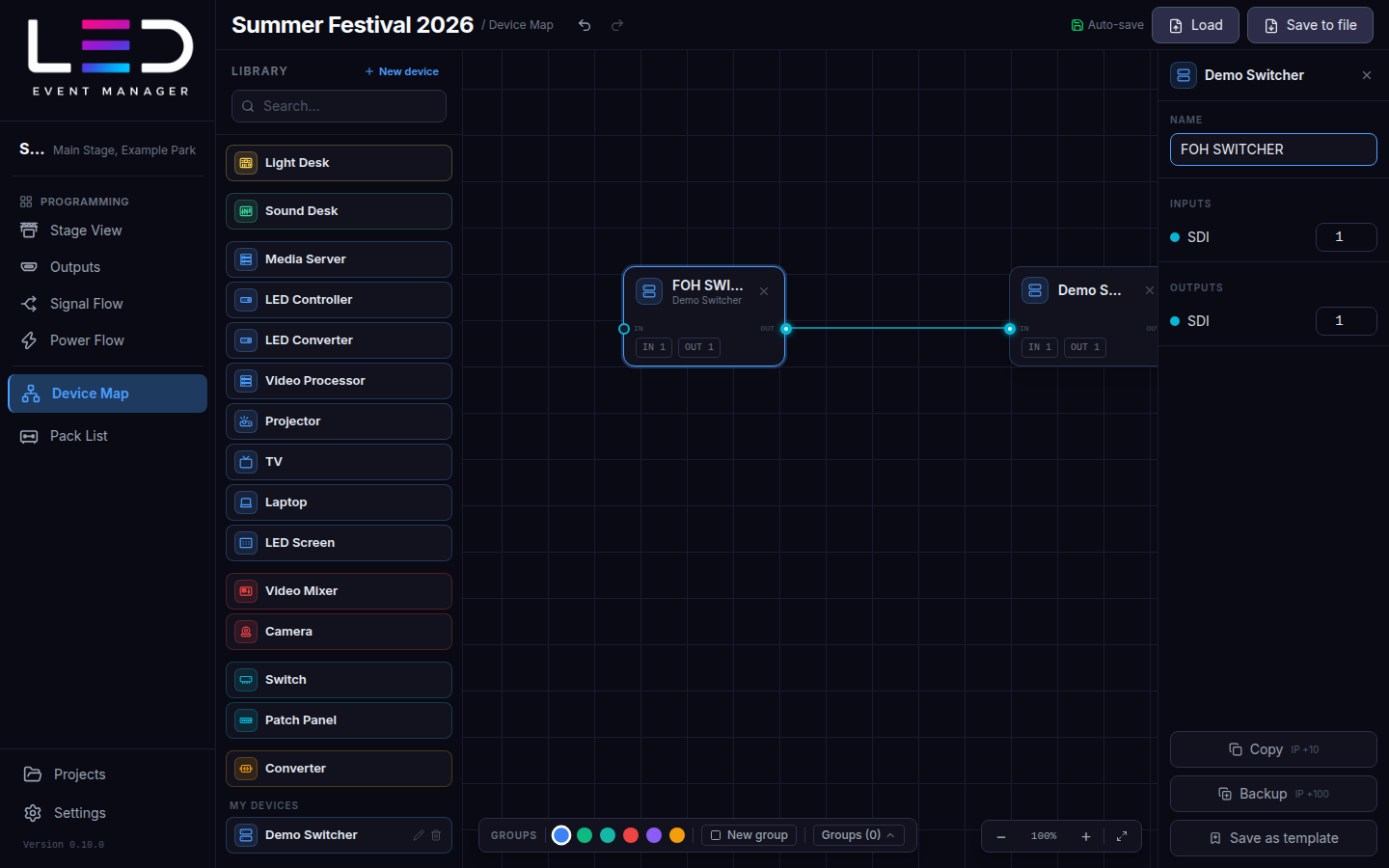
设备图显示演出的 AV 设备及其连接方式:媒体服务器、LED 控制器、视频切换台、 摄像机、控台等。
添加设备
- 从设备库(按颜色分组:控制、视频、信号分配……)将设备拖到图上。 搜索可筛选设备库。
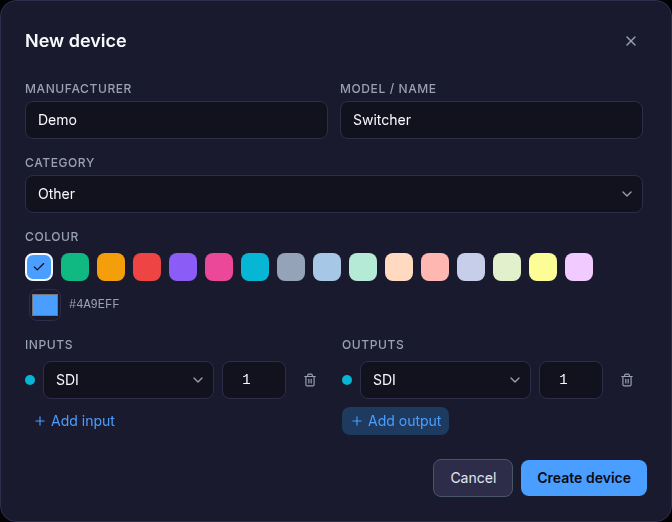
- 新建设备创建你自己的设备:制造商、型号及其输入和输出与接口类型 (SDI、HDMI、DisplayPort、光纤、网络……)。它保存在我的设备下。
- LED 屏设备代表一个输出上的一块屏幕:在右侧面板的屏幕中选择。合并的屏幕 (参见 Stage View)只是一项,并显示其总分辨率,与 Power Flow 相同。 其屏幕与其他屏幕合并后,设备代表合并的屏幕;取消合并后代表最大的部分(合并屏幕取名所依据的屏幕)。
连接设备
从一台设备的输出端口拖到另一台设备的输入端口。连接会采用端口的线缆类型,并显示 在装箱清单中。
点击设备可打开其属性:名称(例如 FOH SWITCHER)、输入和输出,以及 复制 / 备份(以 IP 偏移复制该设备)或另存为模板。
在属性面板中输入的端口数量,按 Enter 或点击任意位置(包括图上)即会 生效。输入数字后直接回到图上,也不会丢失任何内容。
GUI outputs
A device whose Outputs offer HDMI or DisplayPort (media servers, computers, video processors, converters, video mixers, cameras) also has a GUI section, between Outputs and Network: the operator monitor outputs, kept apart from the video outputs that feed the show. Set the number of HDMI and DP GUI outputs the same way as in Outputs.
Each GUI output is its own port on the device card, after the video outputs; hovering it shows its name (for example GUI HDMI 1). Cable it to an HDMI or DisplayPort input like any output — for example an operator monitor. The cable is listed as GUI HDMI / GUI DisplayPort on the map, in the Pack List and in the project report, so GUI cables never mix with the show outputs. Projects saved before this version open unchanged, with no GUI outputs.
调整设备大小
单个选中的设备会像分组一样显示调整手柄:拖动手柄即可改变卡片大小(节点不能缩到 比默认宽度更窄,LED 屏设备保持固定的预览大小)。
分组与选择
- 在图的空白处拖出一个框,即可选中多个设备并一起移动。
- 分组:选择一种颜色并点击新建分组,将相关设备框在一起(例如“FOH”、 “舞台左侧”)。分组 (N) 列出所有分组。
- Ctrl/⌘ + C / V / D 复制、 粘贴和创建副本;Delete / Backspace 删除选中内容。
Synced custom devices Team plan
Your custom devices sync with your account. A team project's linked devices appear in the library while that project is open, and team members can edit their definitions. Only the owner can delete a device from their own library; existing project nodes and cables stay in place. See Custom cabinets and devices.